Hospital & IPD
OT Scheduling
Use OT Scheduling to plan surgeries, assign an OT room and surgical team, record pre-operation checks, track progress, and save operation and recovery notes.

How to find this page
- 1
Sign in to EliteHMS
- 2
Select OT Scheduling from the left-hand menu

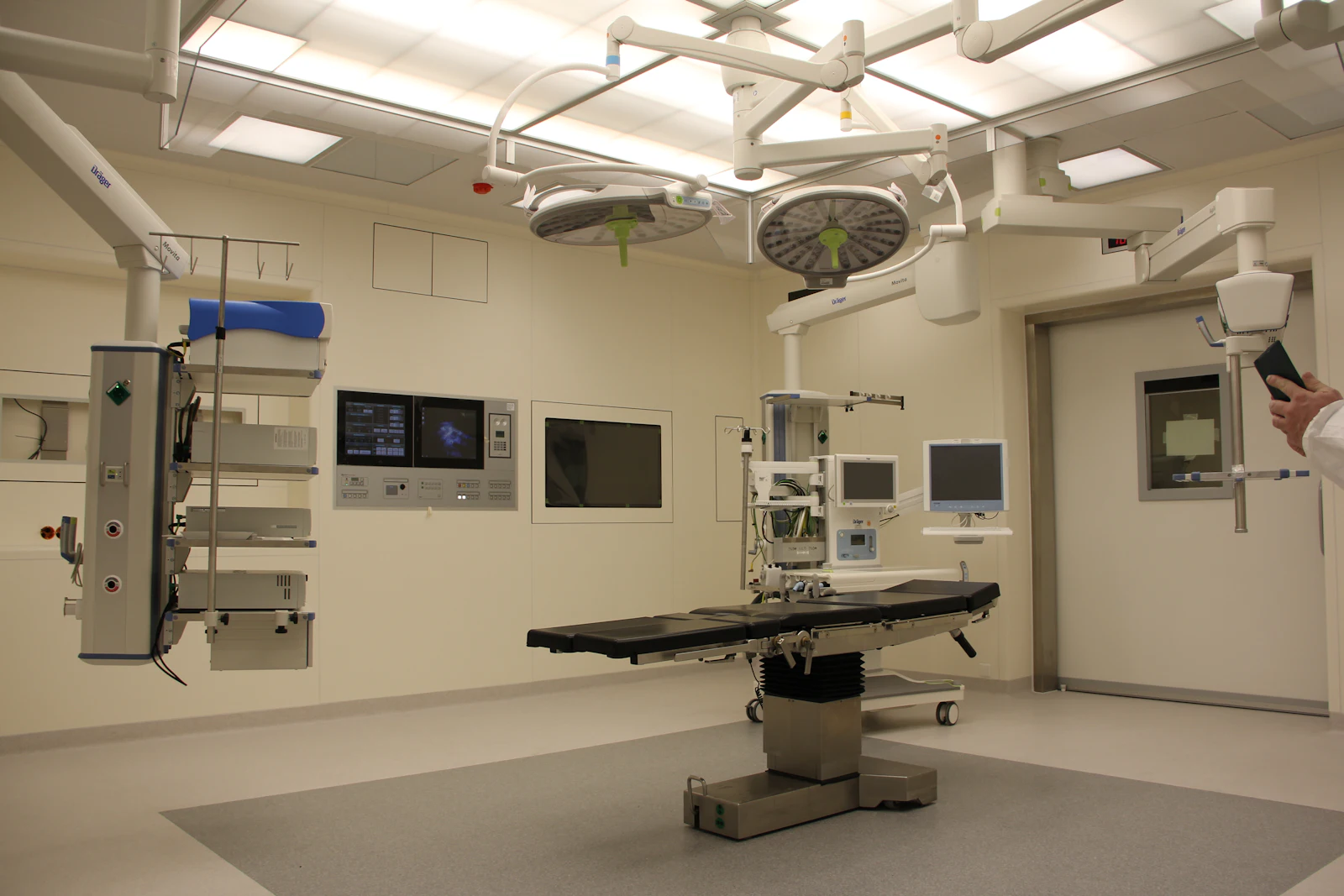
Note:OT means Operating Theatre: the room where a surgical procedure takes place.
What this page is for
Use OT Scheduling to plan surgeries, assign an OT room and surgical team, record pre-operation checks, track progress, and save operation and recovery notes.
Tip:If the page shows no surgeries for the selected location and date filter, select Schedule First Surgery or Schedule Surgery to begin.
Understand the summary cards
- Today Total: Surgeries scheduled for today.
- In Progress: Surgeries currently marked as underway.
- Completed Today: Surgeries marked complete today.
- Upcoming: Future scheduled surgeries.
- This Month Done: Surgeries completed this month.
- This Month Hours: Operation time recorded for the month.

Note:Use the cards as an operational overview. They depend on schedules and status updates entered in the system.
Schedule a surgery
- 1
Select Schedule Surgery
- 2
Search for and select a registered Patient
Confirm that you have selected the correct patient.
- 3
Enter the Surgery Type / Procedure
For example, “Appendectomy” or “Hernia Repair”.
- 4
Choose the OT Room and Category
- 5
Choose a Priority: Routine, Urgent, or Emergency
Use priority according to your hospital’s policy.
- 6
Set the Date, Start Time, and estimated duration
- 7
Select the planned anesthesia type
- 8
Optionally add an estimated cost and Pre-Op Notes
- 9
Review the details and select Schedule Surgery

Note:Patient, procedure, room, date, and start time are required. The system checks for overlapping bookings in the same room using the scheduled time and estimated duration. If there is a conflict, adjust the room or schedule time before saving.
Warning:The form’s default OT rooms, categories, and anesthesia choices are selection lists. Confirm the details with the clinical and theatre teams before saving.
Search, filter, and switch views
Use the search box to find schedules by patient, surgery type, or surgeon. Choose a date or select Today to filter the list. Select Clear to remove a date filter.
Use a status filter to show schedules that are Scheduled, Pre-Op, In-Progress, Completed, Cancelled, or Postponed.

Select Calendar to see schedules in calendar view. The button changes to List so you can return to the list. Use Refresh to reload schedules and summary cards.

Select a schedule card to open its details. The card includes the patient, room, date and time, estimated duration, status, priority, surgeon (when assigned), anesthesia, and checklist progress.
Review schedule details and progress it
The schedule detail page shows the patient and procedure information, timing, estimated cost, pre-op notes, team, and checklist.

Use the status actions to record progress:
- Scheduled: The operation has been planned.
- Pre-Op: The team is preparing the patient and checking readiness.
- In-Progress: The surgery has started. This records the actual start time.
- Completed: The operation is finished. Complete the completion form to save the end time and operation details.
- Cancelled: The schedule will not proceed as planned.
- Postponed: The surgery has been delayed.
Note:The normal on-screen sequence is Scheduled, Pre-Op, In-Progress, then Completed. A schedule in Scheduled or Pre-Op can also be edited, cancelled, or postponed. Status changes require confirmation.
Complete the pre-operation checklist
Open Pre-Op Checklist in the schedule details. The page records who marked each item and when, and shows overall checklist progress.
Warning:Mark an item complete only after it has actually been checked.
The checklist includes checks such as:
- Blood work and blood group
- Patient and anesthesia consent
- Fasting confirmation
- Allergy review and imaging availability
- Blood arrangements, IV access, and pre-medication
- Patient identity and surgical site marking

The app warns when checklist items remain incomplete.
Warning:Use the hospital’s approved clinical procedures and required sign-offs; the software checklist does not replace them.
Assign the surgical team
- 1
Open Team in the schedule details
- 2
Add each team member’s role, name, and optional phone number
Roles include Surgeon, Co-Surgeon, Anesthesiologist, OT Nurse, Scrub Nurse, OT Technician, and Other.

Tip:Check spelling and role assignments before saving. Team members can be removed before the surgery is marked Completed.
Mark the surgery completed
When the operation has finished, choose Complete. Record the applicable details in the form:
- Operative Notes: Findings and procedure details.
- Post-Op Notes: Post-operation care or follow-up notes.
- Complications: Record “None” or describe what occurred.
- Implants / Materials Used: Materials used during the operation.
- Post-Op Ward and Bed: Where the patient is going after surgery.
- Actual Cost: The recorded actual cost.
- Recovery Notes: The patient’s condition or notes from recovery.
- 1
Choose Complete
- 2
Record the applicable details in the form
- 3
Review the record, then select Mark Completed
Note:The system records actual end time and calculates actual duration when the surgery was started in EliteHMS.
Use the report
Select Report to open the OT Utilization Report. Choose a month to review totals and breakdowns by OT room, procedure type, and surgeon. The report can include scheduled, completed, cancelled, and postponed counts, and operation hours.

Note:Report figures depend on the statuses and operation details recorded in schedules.
Helpful terms
- Pre-Op: Preparation and checks performed before surgery.
- Anesthesia: Medicine or care used to prevent pain during a procedure.
- Estimated duration: Planned operation length.
- Actual duration: Time recorded between starting and completing the surgery in EliteHMS.
- Post-Op: Care and recovery after surgery.
- OT utilization: How scheduled operating rooms and time are being used.